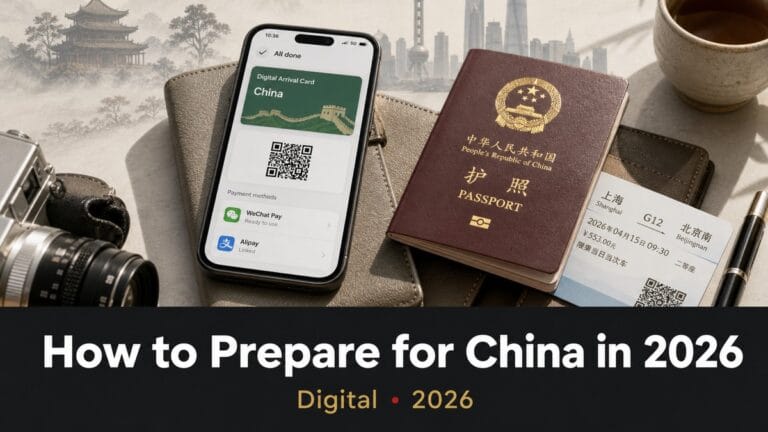
Digital Survival Kit · Connectivity
How to Use eSIM in China on iPhone (2026)
Sort mobile data before wheels-down—not at a slow airport kiosk. This guide walks through hardware checks, roaming vs local plans, QR install at home, and the one setting most travelers forget after landing: Data Roaming ON.
A working China eSIM on iPhone means Alipay OTPs, train e-tickets, and Amap navigation the moment you clear customs—no hunting for captive Wi-Fi or swapping plastic SIMs at midnight.
This is a field-tested activation protocol, not theory. Pair it with our eSIM vs VPN guide and best eSIMs for China comparison when you pick a provider.
Phase 1: Hardware compatibility (do this first)
Before you buy any plan, confirm your iPhone model and lock status. Many failures happen here—not at the QR scan step.
| iPhone model | US / Europe / Global | China mainland / HK / Macau |
|---|---|---|
| iPhone 16 / 15 / 14 | eSIM supported | No eSIM (dual physical SIM) |
| iPhone 13 / 12 | eSIM supported | No eSIM (dual physical SIM) |
| iPhone XS / XR / SE (2nd gen+) | eSIM supported | No eSIM (dual physical SIM) |
| Carrier lock | Must show No SIM restrictions under Settings → General → About | |
The “China model” trap: iPhones sold in mainland China, Hong Kong, or Macau often have two physical SIM slots and zero eSIM. Check Settings → General → About → Model Number before you purchase a plan.
Phase 2: Roaming eSIM vs local Chinese eSIM
For most tourists, the choice is straightforward.
| Feature | Roaming eSIM (recommended) | Local Chinese eSIM |
|---|---|---|
| Firewall | Bypassed (Google, Instagram, WhatsApp often work) | Blocked (VPN required) |
| Setup | Scan QR and go | Passport registration often required |
| IP routing | Hong Kong / Singapore | Mainland China |
| Best for | Short trips & business travel | Long-term residents |
We recommend a roaming travel eSIM so Western apps work without VPN gymnastics on day one.
Phase 3: Pre-departure activation (at home)
Do not rely on airport Wi-Fi. It is slow, often needs SMS you do not have yet, and fails when queues are long. Start activation in your home country on stable Wi-Fi.
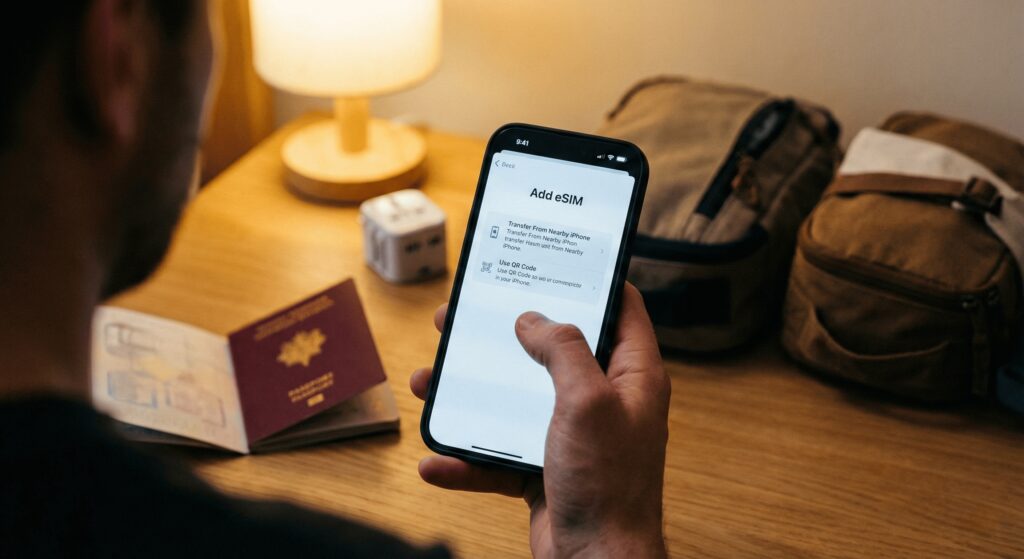
Step 1: Scan the QR code
- Open the QR code email from your provider.
- On iPhone: Settings → Cellular (or Mobile Service).
- Tap Add eSIM → Use QR Code and scan.
Step 2: Label the line
When iOS asks for a label, choose Custom and type “China Travel”.
Insider tip
This prevents you from accidentally using your home number and incurring massive roaming fees (often $10/MB).
Phase 4: Land & connect (tarmac routine)
Most “iPhone eSIM not working in China” reports trace to one toggle: Data Roaming OFF on the travel line.
After landing, run this sequence:
- Switch data source: Settings → Cellular → Cellular Data → select China Travel.
- Stop auto-switching: Disable Allow Cellular Data Switching so your home line cannot bill data.
- Enable Data Roaming (critical): Tap the China Travel line → turn Data Roaming ON. Hong Kong–routed travel eSIMs need roaming active inside mainland China.
Troubleshooting: no service or no internet
No service / searching forever
- Airplane mode cycle: ON for 10 seconds, then OFF to force a tower handshake.
- Manual network: Settings → your China Travel line → Network Selection → turn off Automatic → pick China Unicom or China Mobile.
Connected but no internet
- Check APN: Use the APN from your provider email (e.g.
3gnetorctm-mobile) if auto-fill fails. - Full restart: Power off, wait 30 seconds, power on.
Cannot open Instagram or Gmail
You likely bought a local mainland eSIM by mistake—you are behind the firewall. Install a paid VPN before you need it: best VPNs for China or Surfshark.
Data-saving tips for travelers
China mobile data is fast but finite on travel plans.
- Turn off iCloud Backup over cellular: Settings → Apple ID → iCloud → iCloud Backup → disable uploads on cellular so you do not burn gigabytes at the hotel.
- Download offline maps: Since Google Maps is unreliable, download offline areas on Apple Maps or Amap (Gaode).
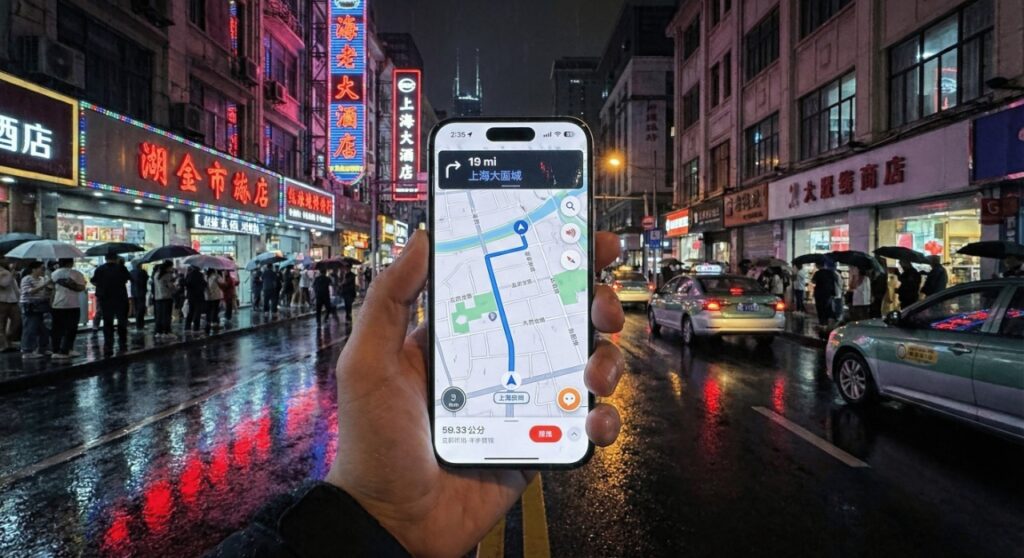
See must-have apps for China travel. Once data works, your phone becomes wallet and ticket: Alipay & WeChat Pay setup, book trains on Trip.com, Trip.com hotels.
Pre-flight checklist
- Confirm iPhone is not a China dual-SIM model and shows No SIM restrictions.
- Buy roaming eSIM (Trip.com or Airalo) before departure.
- Scan QR at home; label line China Travel.
- On landing: select China Travel for cellular data; turn Data Roaming ON.
- Download offline maps on Wi-Fi.
FAQ: China eSIM on iPhone
How do I activate an eSIM for China on iPhone?
Settings → Cellular → Add eSIM → scan your provider QR code (or enter the manual code). Stay on Wi-Fi during install. Full context: first-hour app setup.
Which iPhone models support eSIM in China?
Generally iPhone XS and newer for global models. Mainland/HK/Macau units often lack eSIM entirely. Usability also depends on carrier unlock status.
Can I install the eSIM before arriving?
Yes—install at home. Many plans start billing only when you connect to a supported network in China.
Does my iPhone need to be unlocked?
Yes for most international travel eSIMs. Locked phones may fail to register on roaming networks.
Will I get a Chinese phone number?
Most travel eSIMs are data-only with no +86 number. Local numbers require real-name registration with a Chinese carrier.